
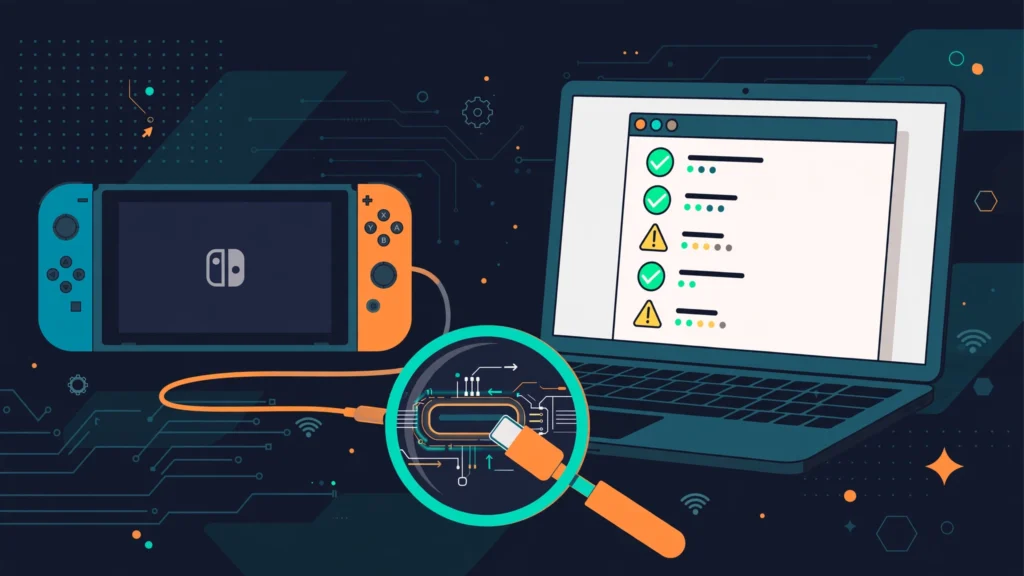
You plugged it in. NS USBloader says “NS not found in connected USB devices.” You unplugged it, plugged it back in, restarted everything, and it’s still sitting there mocking you.
I’ve been exactly there — cable in hand, staring at a Switch that my PC swears doesn’t exist. The good news: ns usbloader not detecting switch is almost always one of a handful of boring, fixable things. Not a broken console, not a broken tool. Just a driver, a cable, or a step done in the wrong order.
Work through these nine fixes in order. They’re ranked by how often each one is actually the culprit, so most people are up and running by fix #3.
Fix 1: Install the USB Drivers Properly (Zadig / libusbK)
This is the cause roughly 70% of the time. On Windows, your Switch needs a special USB driver before NS USBloader can see it.
How to fix it:
- Download Zadig (free, from the official site — it’s a single .exe, no install needed).
- Plug your Switch into the PC with a USB cable.
- In Zadig, go to Options → List All Devices.
- Find your Switch in the dropdown (it may show as an unknown device).
- Select libusbK as the driver and click Install Driver (or Replace Driver).
- Wait for it to finish, then restart NS USBloader.
Alternatively, NS USBloader itself can install drivers: open the app, click the gear icon → Download and install drivers, and follow the prompts.
How to confirm it worked: Open Device Manager. Under the libusbK/USB devices section, you should see your Nintendo Switch listed.
Fix 2: Use a Real Data Cable (Not a Charge-Only Cable)
A huge number of USB-C cables — especially cheap ones bundled with chargers — only carry power. No data lines at all. Your Switch charges happily, your PC sees nothing.
How to fix it:
- Try a different cable, ideally one you know transfers data (test it with a phone or external drive first).
- Prefer a USB-A to USB-C cable over USB-C to USB-C. C-to-C cables are notoriously flaky for this.
- Avoid USB hubs and docks for the initial test. Plug directly into the PC.
Fix 3: Try a Different USB Port
Front-panel ports on desktops go through internal headers that can cause connection issues. USB 3.x ports sometimes behave worse than plain USB 2.0 ports for device-mode connections.
How to fix it:
- Plug into a rear USB port directly on the motherboard (desktops).
- Try a USB 2.0 port if one’s available.
- Unplug other high-draw USB devices while testing.
Fix 4: Make Sure the Switch Is Actually Ready (CFW + Installer Open)
NS USBloader can’t see a Switch that’s just sitting at the home menu in stock mode. The console needs to be:
- Booted into custom firmware (Atmosphere, etc.).
- Running your installer app — Awoo Installer, TinWoo, or Goldleaf.
- With the installer in “Install over USB” mode, actively waiting for a connection.
The order matters: open the installer on the Switch first, start USB install mode, then connect the cable and hit refresh in NS USBloader.
Fix 5: Pick the Right Installer App
Not all installer apps behave the same over USB. Older Tinfoil builds in particular have caused “device not found” headaches that vanish the moment you switch apps.
What works best: Awoo Installer or TinWoo. If you’re currently trying with an old Tinfoil build and hitting a wall, try Awoo before you touch anything else.
Fix 6: Check Your Firewall and Antivirus
NS USBloader is a Java app that opens local connections. Overzealous firewalls sometimes block it silently.
How to fix it:
- Add NS USBloader (and Java) to your firewall’s allow list.
- Temporarily disable your antivirus’s USB/device monitoring while testing.
- If using network transfer mode, make sure both devices are on the same network.
Remember to re-enable everything after testing.
Fix 7: Match NS USBloader Settings to Your Installer
NS USBloader supports multiple protocols (Awoo/Tinfoil USB, Goldleaf USB variants, network). If the wrong protocol is selected, the app listens on the wrong channel.
How to fix it:
- In NS USBloader, check which transfer mode is selected and match it to the installer running on your Switch.
- If using Goldleaf, confirm the protocol version matches — Goldleaf versions pair with specific NS USBloader versions.
- When in doubt, Awoo Installer + the default Awoo/Tinfoil USB protocol is the most forgiving combination.
Fix 8: The Unplug-Replug-Restart Dance (In the Right Order)
- Close NS USBloader completely.
- Unplug the Switch.
- Restart the Switch (full restart, not sleep).
- Plug the Switch back in — rear port, good cable.
- Open the installer app on the Switch, start USB install mode.
- Now open NS USBloader and refresh the device list.
Fix 9: Platform-Specific Issues (macOS and Linux)
macOS (especially Apple Silicon): install libusb via Terminal: brew install libusb. Use the M1/ARM build of NS USBloader. Check System Settings → Security if macOS blocked the app.
Linux: add a udev rule for the Switch’s USB vendor/product IDs, reload rules, and run NS USBloader with Java 11+.
Quick-Reference Checklist
- Good data cable (USB-A to C preferred), plugged directly into the PC
- Rear USB port (or USB 2.0 port)
- Drivers installed (Zadig/libusbK, or via the app’s gear menu)
- Switch booted into CFW, installer app open in USB install mode
- Correct protocol selected in NS USBloader
- Firewall/antivirus not blocking the app
Frequently Asked Questions
Why does NS USBloader say “NS not found in connected USB devices”?
That message means the app can’t see your Switch over USB at all. In almost every case it’s the driver (Fix 1), the cable (Fix 2), or the Switch not being in USB install mode (Fix 4). Work the list from the top.
Do I need Zadig if NS USBloader can install drivers itself?
Not necessarily — the built-in driver installer handles it for most Windows users. Zadig is the manual fallback.
My cable charges the Switch fine — why doesn’t the PC see it?
Charging and data are separate wires inside the cable. Charge-only cables physically lack the data lines. Swap the cable.
Does it matter which USB port I use?
Yes. Rear motherboard ports and USB 2.0 ports are the most reliable. Front-panel ports and hubs add failure points.
Can I use NS USBloader without USB, over Wi-Fi?
Yes — it supports network transfers too. Slower than USB, and both devices need to be on the same network.
Final Thoughts
Nine times out of ten, ns usbloader not detecting switch comes down to drivers, cables, or the Switch not being in install mode yet. It’s never as mysterious as it feels at 1 AM with a cable in your hand.
Start with Fix 1, work down the list, and you’ll almost certainly be transferring files within the hour.
Still deciding on your overall setup? Read our NS USBloader vs Tinfoil comparison to pick the workflow that fits you. Get NS USBloader here.