
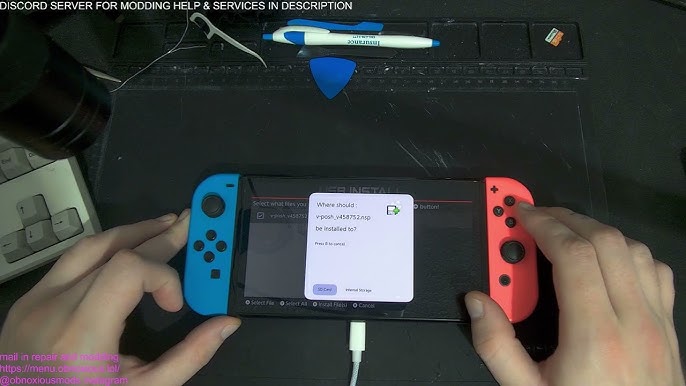
The Nintendo Switch homebrew community has flourished over the years, offering users a plethora of ways to customize and enhance their gaming experience beyond the standard offerings from Nintendo. Among the many tools available, game management utilities stand out as particularly valuable for enthusiasts who maintain large digital libraries. Traditionally, installing games or updates involved a tedious process of removing the SD card from the console, connecting it to a computer, transferring files, and then re-inserting it, a cycle that risks wear and tear and is simply inconvenient. This is where specialized PC applications come into play, bridging the gap between the computer and the Switch to streamline this entire workflow.
One such powerful and popular application is the NS USBloader, a PC-based tool designed to simplify the installation of game files directly to a Nintendo Switch. This utility acts as a server on your computer, allowing you to send game packages, such as NSP and XCI files, over a USB cable or a local network connection to a corresponding homebrew installer running on the Switch itself. It effectively eliminates the need to constantly handle the physical SD card, saving a significant amount of time and effort while providing a more modern, elegant solution for managing a digital game collection.
This article serves as a comprehensive guide to the NS USBloader installer for PC. We will delve deep into its core functionality, exploring what it is, why it has become an indispensable tool for many, and how it fits into the broader homebrew landscape. We will cover the essential system requirements, provide a detailed step-by-step setup guide, and highlight its key features. Furthermore, we will address common troubleshooting issues, explore potential alternatives, and discuss the important legal considerations surrounding its use, providing a complete resource for anyone looking to leverage this powerful application.
The Core Concept of NS USBloader
What is NS USBloader?
The NS USBloader is fundamentally a software application that runs on a Windows PC, designed specifically to interface with a Nintendo Switch console that is running custom firmware and a compatible homebrew installer. Its primary purpose is to facilitate the direct transfer of game files from the computer to the console’s storage. It achieves this by creating a communication channel, either via a physical USB connection or over a local Wi-Fi network, which allows the PC to “push” game data to the Switch. The application presents a user-friendly graphical interface where users can simply drag and drop their game files, select the target console, and initiate the installation process with minimal technical overhead.
The Role of Homebrew on Nintendo Switch
Homebrew refers to software created by independent developers to run on gaming consoles, outside of the official ecosystem sanctioned by the manufacturer. On the Nintendo Switch, the homebrew scene is vibrant and diverse, offering everything from emulators for retro games and custom themes to productivity apps and advanced game management tools. Accessing homebrew typically requires the Switch to be running a custom firmware (CFW), which is a modified version of the official operating system that removes restrictions imposed by Nintendo. This modified environment is what allows users to run unsigned code, such as the NS USBloader’s companion homebrew installer on the Switch, which is essential for the entire process to function correctly and safely.
How It Differs from Traditional Methods
The traditional method of installing games on a modded Switch involves physically removing the microSD card from the console, inserting it into a card reader connected to a PC, and then manually copying the game files (NSP, XCI) into a specific directory on the card. After the transfer is complete, the user must safely eject the card, re-insert it into the Switch, and then use a homebrew file manager or installer to locate and execute the installation. The NS USBloader completely revolutionizes this workflow by eliminating the physical handling of the SD card. Instead, the game is transferred and installed in a single, fluid process directly from the PC to the Switch’s active storage.
Key Features and Functionalities of NS USBloader
Seamless Game Installation
The standout feature of the NS USBloader is its ability to make game installation incredibly straightforward and user-friendly. The interface is typically built around a drag-and-drop system, where a user can simply grab a game file from their computer’s file explorer and drop it into the designated area of the application. Once the Nintendo Switch is connected and waiting for an installation, the user just needs to click an “Install” button within the NS USBloader. The software then handles the entire data transfer and communication process with the homebrew installer on the Switch, providing real-time feedback on the transfer speed and progress.
Multi-Format Support (NSP, XCI, etc.)
Versatility is another key strength of the NS USBloader, as it is designed to work with the primary file formats used within the Switch homebrew community. This broad compatibility ensures that users are not locked into a single type of file format and can manage their entire library using a single tool. The application intelligently handles these different formats, ensuring they are processed correctly for installation on the console. This support is crucial for a comprehensive game management experience.
- NSP Files: These are Nintendo Submission Package files, which are essentially digital copies of games as they would appear on the eShop. They are the most common format for installing games, updates, and DLC directly onto the Switch’s storage.
- XCI Files: Representing a raw dump of a physical game cartridge, XCI files contain all the data from the cart, including the game itself and its initial update. NS USBloader can often install these directly, though some users prefer to convert them to NSP first.
- NSZ Files: This is a compressed version of an NSP file, which significantly reduces the file size, saving storage space on both the PC and the Switch. The NS USBloader can typically decompress and install these files on the fly, offering a great balance between size and convenience.
Network and USB Transfer Modes
Recognizing that different users have different setups and preferences, the NS USBloader provides two distinct methods for connecting to the Nintendo Switch: USB and Network. The USB mode involves connecting the Switch directly to the PC via a USB-C cable. This method is generally preferred for its speed and reliability, as a wired connection is not subject to the interference and latency that can affect wireless networks. The Network mode, on the other hand, offers the ultimate convenience of a completely wireless setup. As long as both the PC and the Switch are on the same Wi-Fi network, users can initiate installations from anywhere in the room.
System Requirements and Prerequisites
PC Hardware and Software Needs
To run the NS USBloader smoothly, a user’s PC must meet a set of basic hardware and software requirements. On the software side, the application is primarily developed for the Windows operating system, with compatibility for Windows 10 and Windows 11 being the most common. It also relies on the Microsoft .NET Framework, typically version 4.7.2 or higher, to be installed on the system; this is usually included with modern Windows updates but may need to be installed manually on older systems. In terms of hardware, a moderately powered PC is sufficient.
Nintendo Switch Requirements
This is the most critical prerequisite: the NS USBloader will not function on a stock, unmodified Nintendo Switch. The console must be hacked and running a custom firmware environment like Atmosphère. This process involves exploiting a specific vulnerability on the console, which is dependent on its serial number and firmware version. Furthermore, the Switch must be capable of running homebrew applications, which is the core function of any CFW. Without this modified software environment, the Switch has no ability to accept installations from an external source like the NS USBloader. Users must understand that this is a non-negotiable requirement and that attempting to use the tool on an official, unmodified console will not work.
- Custom Firmware (CFW): A modded operating system such as Atmosphère must be installed and running on the Switch. This CFW allows the console to run unsigned code, which is essential for homebrew applications.
- Homebrew Installer: A compatible homebrew application like Tinfoil, Awoo Installer, or Goldleaf must be present on the Switch’s SD card. The NS USBloader communicates with this specific application to perform the installation.
- Developer Options Enabled: For network installations, the user may need to enable the “Enable USB 3.0 support” or similar options within their custom firmware’s bootloader (e.g., Hekate or fusee-primary) to ensure a stable and fast connection.
Necessary Homebrew Applications
The most popular and widely supported installer is Tinfoil, known for its sleek interface and robust feature set, including excellent network and USB support. Other excellent alternatives include Awoo Installer, which is praised for its simplicity and speed, and Goldleaf, a more comprehensive file manager that also doubles as a capable installer. The user must choose one of these (or another compatible installer), place its files on their Switch’s SD card, and launch it from the homebrew menu before they can begin receiving installations from the NS USBloader on their PC.
Step-by-Step Installation and Setup Guide
Downloading and Extracting the NS USBloader
The first step is to acquire the NS USBloader application itself. It is typically distributed as a compressed ZIP file from the developer’s official GitHub page or other trusted community sources. Once the file is downloaded, the user must locate it in their file explorer and right-click to select “Extract All…” or use a third-party extraction tool like 7-Zip or WinRAR. It is crucial to extract the contents to a dedicated and easily accessible folder, such as C:\Tools\NS-USBloader or on the Desktop. Inside the extracted folder, the user will find the main executable file, often named NS-USBloader.exe or similar, along with configuration files and necessary libraries.
Configuring the PC Application
Upon launching the NS USBloader for the first time, the user is presented with the main interface, which needs to be configured to communicate with the Nintendo Switch. The configuration process is straightforward but requires attention to detail. The user must first select the correct driver for their chosen connection type. For USB mode, the “libusb” or “WinUSB” driver is typically used, and the application might offer a one-click driver installation option. For network mode, the user must input the local IP address of their Nintendo Switch, which can be found within the Switch’s system settings under the Internet tab. The application also allows users to set a default game directory, making it easier to browse their library.
- Selecting the Installer: A dropdown menu within the application allows the user to specify which homebrew installer they are using on their Switch (e.g., Tinfoil, Awoo, Goldleaf). This ensures the correct communication protocol is used.
- Choosing the Connection Type: The user must toggle between the “USB” and “Network” (or “Network/USB”) tabs depending on their preferred connection method. Each tab has its own specific settings that need to be filled out.
- Setting the IP Address: For network mode, accurately entering the Switch’s IP address is vital. A wrong IP will result in a connection failure. It is good practice to set a static IP for the Switch on the router to prevent this address from changing.
Preparing Your Nintendo Switch
With the PC application configured, the next step is to prepare the Nintendo Switch to receive the installation. The user must first boot their console into the custom firmware environment. Once on the Switch’s home screen, they need to launch the homebrew menu, which is usually done through a custom game icon or a dedicated album shortcut. From the homebrew menu, the user must then select and launch their chosen homebrew installer, such as Tinfoil. Once the installer is running, it will typically display a main menu with an option like “Install from USB,” “Network Install,” or it may simply wait for an incoming connection.
Advanced Usage and Troubleshooting
Optimizing Transfer Speeds
While the NS USBloader is generally efficient, several factors can influence the overall transfer speed, and optimizing these can lead to significantly shorter waiting times. For USB transfers, the quality of the cable is paramount. A high-quality, data-rated USB-C cable is essential; a cheap charging-only cable will not work or will perform very poorly. Ensuring that the USB port on the PC is a USB 3.0 (blue) port can also make a substantial difference. For network transfers, the best results are achieved when both the PC and the Switch are connected to a 5GHz Wi-Fi network, which offers higher speeds and less interference than the more common 2.4GHz band.
Common Error Messages and Their Solutions
Encountering errors is a natural part of working with complex software and hardware interactions. One of the most common issues is a “Failed to connect” error, which almost always points to a configuration problem. The user should double-check that the correct IP address is entered for network mode, that the Switch’s firewall isn’t blocking the connection, and that the correct driver is installed for USB mode. Another frequent error is “NSP installation failed” on the Switch side, which can be caused by a corrupted game file, insufficient storage space on the Switch’s SD card, or an incompatible game version for the console’s current firmware.
Managing Game Libraries and Updates
Beyond simple installations, the NS USBloader is an excellent tool for managing an entire game library. The application’s interface often allows users to see the games they have already installed, helping to avoid duplicates. When it comes to updates and DLC, the process is just as simple. The user can drag and drop the update or DLC NSP file onto the NS USBloader. The homebrew installer on the Switch is typically smart enough to recognize that it is an update or DLC for an existing game and will apply it correctly, rather than trying to install it as a separate title.
Exploring Alternatives and the Broader Context
Other Popular USB Loaders
While the NS USBloader is a fantastic and widely used tool, it is not the only option available to the homebrew community. Other PC-side loaders offer different interfaces and feature sets that might appeal to different users. For instance, “TinyDB” is another well-regarded application that focuses on providing a database-driven approach to game management, often integrating with title databases to pull information like cover art and descriptions. There are also more minimalist, command-line based tools for advanced users who prefer scripting and automation. Exploring these alternatives can be worthwhile, as the “best” tool often comes down to personal preference regarding user interface, specific features, and performance on a particular PC setup.
The Legal and Ethical Landscape
It is imperative to discuss the legal and ethical considerations surrounding the use of tools like the NS USBloader. The application itself is a neutral piece of software, much like a file transfer client. Its legality is not in question. However, its use becomes a legal gray area or outright illegal depending on the content being installed. Creating and running homebrew on hardware you own is generally considered legal in many jurisdictions. However, downloading and playing games that you do not own a legitimate license for is software piracy and is illegal. The ethical and intended use of the NS USBloader is for managing backups of games that you legally own, either as physical cartridges or as digital purchases.
The Future of Switch Homebrew
The landscape of Nintendo Switch homebrew is constantly evolving. As Nintendo releases new firmware updates in an attempt to patch security vulnerabilities, the homebrew community works just as hard to find new exploits and update custom firmware and tools accordingly. The future will likely see continued development of applications like the NS USBloader, with potential new features such as enhanced user interfaces, support for new file formats, and even more robust network capabilities. The eventual release of Nintendo’s next-generation console will also shift the focus of the community, but the Switch’s massive install base ensures that its homebrew scene will remain active and innovative for years to come, continually providing new ways for enthusiasts to engage with their hardware.
Conclusion
The NS USBloader installer for PC stands as a cornerstone utility within the Nintendo Switch homebrew community, transforming the tedious task of game management into a streamlined and efficient process. By enabling direct, cable-free installation of games, updates, and DLC, it saves users considerable time and effort while protecting their hardware from the wear of repeated SD card removal. For anyone invested in the Switch homebrew scene, mastering this tool is an essential step toward a more convenient and enjoyable gaming experience, perfectly bridging the gap between a personal computer and the versatile Nintendo Switch console.